Daemon and runtimes
How Clowld Space connects computers, discovers AI coding tools, and executes runs.
Clowld Space records and coordinates the work; connected computers execute it. The daemon on a computer claims runs and invokes the AI coding tools installed on that machine.
Daemon vs runtime
- The daemon is the Clowld Space background process running on one computer. It connects to the server, discovers local tools, claims runs, and reports results back.
- A runtime represents one concrete execution environment available to a workspace. It corresponds to one computer plus one AI coding tool — or one custom runtime profile — on that computer.
For example, a computer has both Claude Code and Codex installed and is connected to two workspaces. The daemon registers Claude Code and Codex runtimes for each workspace. Restarting the daemon updates the existing records; it does not keep creating new runtimes for the same combination.
Execution location and data boundaries
The AI coding tools a local runtime invokes, those tools' own login credentials, and your local code directories all stay on the connected computer. The Clowld Space server does not execute commands on behalf of local tools, and it does not automatically upload your entire working directory.
So the team can collaborate, the server stores issues, comments, agent configuration, run context, run records, and the results agents write back. That content can include code snippets or other project context an agent chose to read and include in its replies.
An agent's custom environment variables are stored server-side and sent to the runtime at execution time. Do not read "local execution" as "every secret exists only on this machine": custom environment variables and MCP configuration live on the server, and their display is limited by the sensitive-value rules.
Starting the daemon
With Clowld Space Desktop, the app starts the daemon automatically — no extra command needed.
After Desktop is installed, daemon status/start/stop/restart from the default official CLI is delegated to Desktop, so the default experience runs only one daemon. Named profiles remain independent for self-hosted services or additional daemons.
On the web, a remote computer, or a headless environment, install the Clowld Space CLI first, then run:
clowld daemon startThe daemon runs in the background by default. Common commands:
| Command | Purpose |
|---|---|
clowld daemon status | Show daemon and connection status |
clowld daemon logs -f | Follow the logs |
clowld daemon restart | Restart the daemon and re-detect local tools |
clowld daemon stop | Stop the daemon |
clowld daemon start --foreground | Run in the current terminal, for debugging |
To place run workspaces on another disk, persist a root for the current profile with clowld config set workspaces_root <path>, or pass --workspaces-root <path> to daemon start or daemon restart. The flag overrides CLOWLD_WORKSPACES_ROOT, which overrides the profile config. Existing run directories are not moved when the root changes.
On startup, the daemon detects supported AI coding tools on PATH and registers runtimes for the workspaces you are allowed to connect. If a tool was just installed or signed in, restart the daemon to detect it again.
The daemon needs at least one built-in supported AI coding tool detected before it will start. Install methods and executable names are in Install AI coding tools.
Dispatch and online status
Once registered, a runtime keeps a persistent connection. When a new run enters the queue, the server notifies the matching daemon; the daemon also polls periodically as a backstop after connection interruptions. So when a runtime is online with spare capacity, runs usually start immediately.
The daemon sends a heartbeat every 15 seconds. The server combines heartbeats and connection state to decide whether a runtime is online; after a daemon exits unexpectedly, the runtime usually shows as offline within about 3 minutes at the latest.
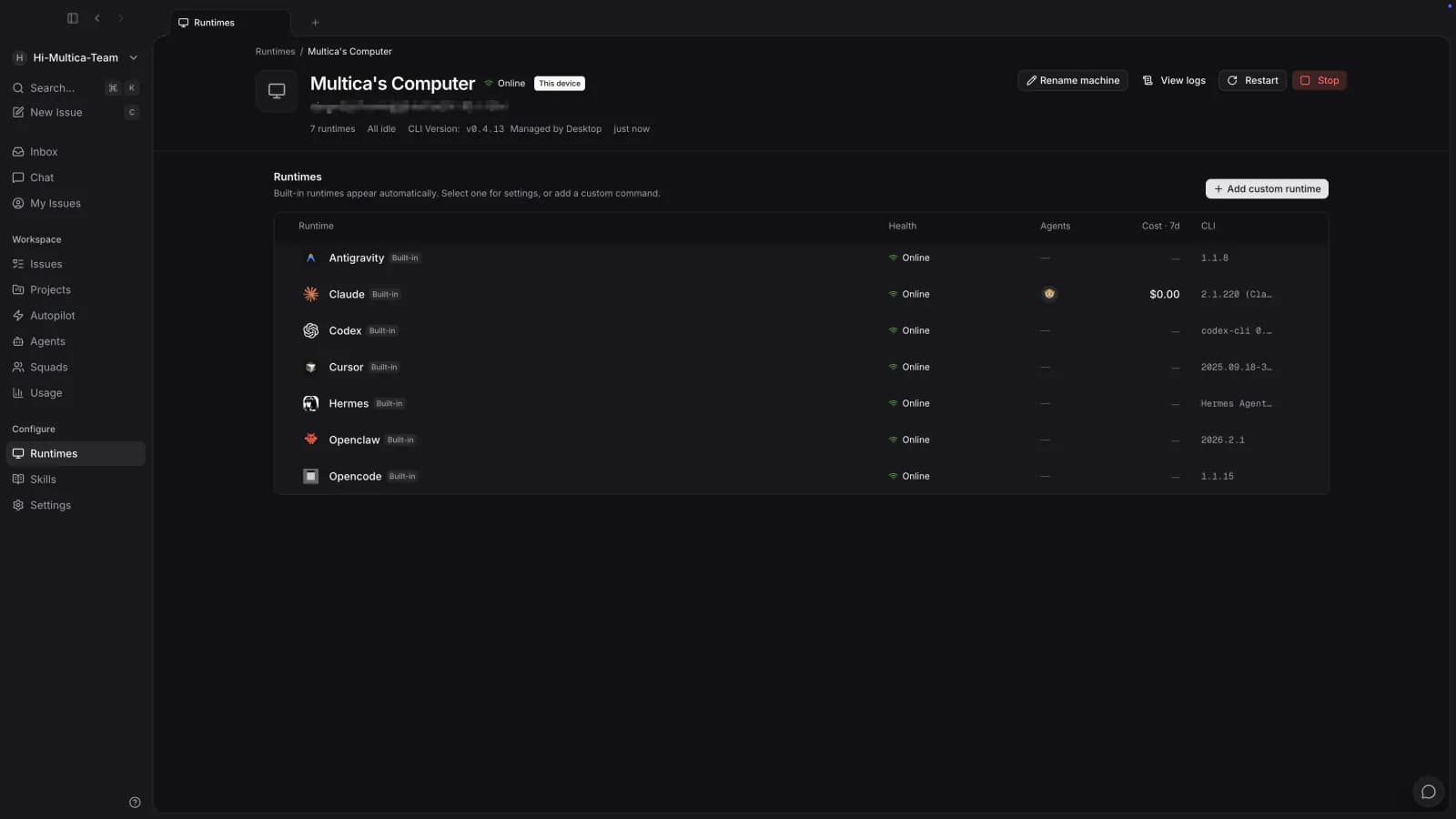
When a runtime is offline:
- Runs already queued wait for the runtime to recover. They fail only once it has stopped heartbeating for longer than the reconnect grace and the run has itself been queued that long, so a runtime that is merely busy keeps its backlog, and work assigned to an already-offline runtime still gets a full grace to wait.
- Runs that were in progress fail; eligible issue or chat runs can retry automatically.
- When the daemon starts again, it re-registers its runtimes and reclaims runs that did not end cleanly last time.
- A runtime offline for more than 7 days with no agents bound to it (including archived ones) is cleaned up automatically.
Detailed states and retry rules are in Runs.
Concurrency limits
One daemon executes at most 20 runs at a time by default; each agent at most 6. Effective concurrency is the smaller of the two.
Once a limit is reached, new runs keep queueing. You can adjust a single agent's concurrency in the agent settings, and the machine-wide cap through CLOWLD_DAEMON_MAX_CONCURRENT_TASKS. Parallel runs compete for machine capacity, tool account quota, and the same working directory all at once.
Private and public runtimes
A local runtime is private by default: only the runtime owner can create agents on it. Workspace owners and admins are no exception — the runtime is someone else's computer, and running an agent there spends their machine and their tool credentials.
Only the runtime owner can make it public — workspace admins can rename or delete a runtime, but sharing one is the owner's decision. Other workspace members can then select this runtime as well; that does not share the underlying AI coding tool's login credentials — it only lets members route their agents' runs to this computer.
Custom runtime profiles
If your team uses an internal wrapper, a version-pinned executable, or needs fixed extra arguments for a compatible tool, create a custom runtime profile.
A custom profile does not add a new communication protocol. You still pick one of the protocol families Clowld Space already supports (the tool's integration protocol type; see AI coding tools comparison), and the command itself must be compatible with that family.
Task runtime environment
When the daemon starts an agent run, it injects task context into the runtime process. These values are owned by the daemon: an agent's custom environment cannot override any CLOWLD_ variable or the task temporary-directory variables.
The table lists the variables that custom runtimes can use today. It is intentionally not exhaustive and is not a versioned API surface. Build integrations only on the five variables marked integration contract; treat the rest as informational details that may change.
| Variable | Value in a task | Stability |
|---|---|---|
CLOWLD_TOKEN | Task-scoped mat_ API credential | Integration contract |
CLOWLD_TASK_ID | ID of the active task | Integration contract |
CLOWLD_AGENT_ID | ID of the assigned agent | Integration contract |
CLOWLD_WORKSPACE_ID | ID of the task's workspace | Integration contract |
CLOWLD_SERVER_URL | Clowld Space server URL selected by the daemon | Integration contract |
CLOWLD_TASK_CONFIG_ROOT | Private task-local Clowld Space CLI configuration root | Informational |
CLOWLD_TASK_WORKSPACES_ROOT | Root of the daemon-managed task workspaces | Informational |
CLOWLD_AGENT_NAME | Display name of the assigned agent | Informational |
CLOWLD_DAEMON_PORT | Local daemon health/API port used by task-only commands such as clowld repo checkout | Informational |
CLOWLD_TASK_SLOT | Slot in the daemon-wide concurrency pool; useful for slot-indexed resources such as GPUs | Informational |
TMPDIR | Private temporary directory for the active task; also supplied as TMP and TEMP except on Windows, where tasks inherit the user's temp paths for Git Bash's shared /tmp; Windows Claude Code defaults CLAUDE_CODE_TMPDIR to the task temp directory | Informational |
The server determines authorship for requests made with CLOWLD_TOKEN; writes such as issue comments are attributed to the assigned agent and active task. For the token's complete binding, permissions, attribution, 24-hour maximum lifetime, and cleanup behavior, see Temporary tokens for agent runs.
These values live in the runtime process's real environment. Any child process the runtime starts inherits all of them by default, including CLOWLD_TOKEN. If a child should not hold the credential, strip it explicitly; do not rely on process isolation that is not there. The exception runs the other way: tools that filter their own subprocess environment may require an explicit allow rule. For example, Codex's shell tool drops names containing TOKEN, KEY, or SECRET, so the daemon installs a managed shell policy that allows the required task variables. Keep the token in process environments only—never in a prompt, log, repository file, or persistent configuration. A child shares the parent task's identity and permissions; it does not receive a new, independently scoped identity.
Creating a profile
Only workspace owners and admins can create, edit, or delete custom runtime profiles:
- Open Runtimes and go to a computer where the command is installed.
- Click Add custom runtime.
- Choose the protocol family the command is actually compatible with.
- Fill in the name, command, and fixed arguments, then save.
The profile is shared across the workspace. Each connected computer looks up the command on its own; only computers that can resolve it on PATH register the corresponding runtime. Creating a profile does not install the command, and it does not sign other members in to the tool.
The command field takes an executable and arguments, not a shell script. Plain arguments, quotes, and backslash escapes work; pipes, redirects, &&, ;, backticks, and environment variable expansion do not. When you need those behaviors, put them in a wrapper script and use that script as the command.
How your arguments are ordered
Everything you type in the command field stays directly after the executable, ahead of the arguments Clowld Space adds:
<your command> <your fixed arguments> <Clowld Space's protocol arguments> <the agent's custom arguments>This is what makes a subcommand-style wrapper work. If your command is ccms start q36, the tool sees start q36 first and can select its subcommand before Clowld Space's -p and the rest arrive — which is the only order such a wrapper accepts.
Your arguments used to be appended last instead. Most flag-style commands parse the same either way, but not all of them do — a command that distinguishes global flags from subcommand flags can care where a flag sits. If you already have a profile with fixed arguments, start one run on it after upgrading to confirm it still works.
Two more consequences worth knowing:
- Clowld Space's own values win a conflict. If your fixed arguments set a flag Clowld Space also sets, Clowld Space's value comes later and takes effect. Most importantly, a model chosen on the agent overrides a
--modelpinned in the profile. To pin a model for everyone, leave the agents' model field empty. - Protocol-critical flags are ignored.
-p,--output-format,--input-format,--permission-mode, and the equivalents for other families are dropped from your fixed arguments, because overriding them would break the daemon's connection to the tool. Subcommands and other positional arguments always pass through.
If a Desktop-launched daemon cannot find a command your terminal can run, set an absolute path for the current computer:
clowld runtime profile set-path <profile-id> --path /absolute/path/to/commandRemove the path override:
clowld runtime profile unset-path <profile-id>Editing a profile only affects runs claimed afterwards. Before deleting a profile, deal with the active agents still bound to its runtimes. Deleting only the runtime instance on one computer does not delete the profile — a running daemon will re-register it.
Troubleshooting an offline runtime
Check in this order:
- Run
clowld daemon statusto confirm the daemon is running. - Run
clowld daemon logs -fto look for login, network, or tool-detection errors. - Run
command -v <tool-command>in the same environment to confirm the daemon can find it. - Open Clowld Space's Runtimes page and check whether the target computer and the matching AI coding tool show as online.
- After a tool install, a path change, or a profile update, run
clowld daemon restart.
If the problem persists, see Troubleshooting.
Explicit autostart
From CLI 1.2.7, standalone daemon login/boot autostart is opt-in. daemon start starts the process without registering autostart; daemon stop stops the current process without removing registration.
clowld daemon autostart status
clowld daemon autostart enable
clowld daemon autostart disable
For a named profile, use clowld --profile <name> daemon autostart status and enable or disable under the same profile. Windows uses a per-user Run entry; macOS uses a LaunchAgent. Linux prefers a systemd user service and falls back to XDG login autostart. Startup without login also depends on the user service and linger state; follow the status output.
The Desktop-managed default daemon remains controlled by Desktop: use the app startup settings. Commands refuse to overwrite or delete entries not created by Clowld Space; inspect the location and note in status. After a path change, daemon start refreshes only existing managed entries. macOS/Linux registration captures PATH, not every variable from the current shell.
Version 1.2.7 also improves health-port recovery and the watchdog after sleep. Real Windows sleep/resume and macOS/Windows installation and autostart remain unverified on devices. Linux evidence is limited to container PAM/systemd and offline installation/startup, without rebooting the host. See verification limits.
Next steps
-
Install AI coding tools — install and verify a supported AI coding tool.
-
AI coding tools comparison — compare models, session resumption, MCP, and skill support.
-
Runs — queueing, stopping, and retries.